
Stage 4: Gold & Shop
When enabled, students can earn gold with rewards. Students can then spend their gold on shop items. Shop items are either in-game items that give them benefits (like bonus experience or mana), or real-life rewards that you provide.
While experience points are typically used to reward good behavior (helping others, participation, being kind), gold is generally used to reward academic achievements (good grades, completed assignments, correct answers). This creates a nice balance: behavior earns levels and powers, while academics earns purchasing power.
Flexible System
This is just a guideline! You're free to use gold and experience however works best for your classroom. Many teachers mix small amounts of both for any achievement.
The gold system creates an economy in your classroom, teaching students about earning, saving, and spending while keeping them engaged.
Prerequisites:
- Registered account
- Class created with students added
- Familiarity with Stage 1: Rewards & Powers
Independent System
You can enable Stage 4 without enabling Stage 2 (Student Avatars) or Stage 3 (Health). They're independent systems that work together but don't depend on each other.
Configuration
Enabling Gold
To activate the gold system:
- Go to Class Settings → Features
- Enable "Gold"
- Click "Save Changes"
Once enabled, gold-related options appear throughout your class configuration.
Rewarding Gold
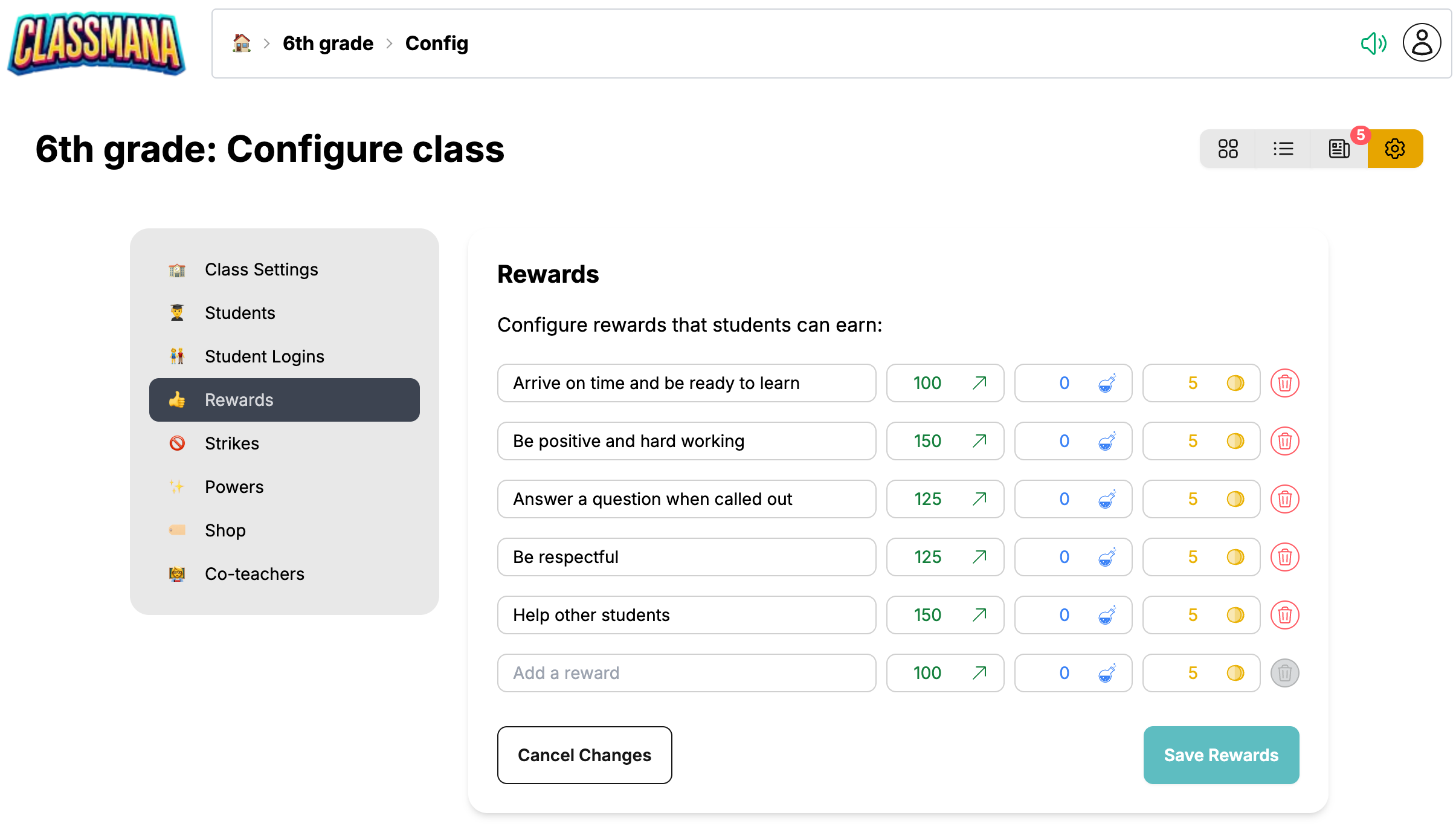
After enabling gold, your rewards can include gold amounts:
- Navigate to Class Settings → Rewards
- For each reward, you'll see a Gold field alongside Experience, Mana, and Health
- Set gold amounts for academic achievements (e.g., "Perfect homework" = 50 gold, "A on test" = 100 gold)
- Click "Save Rewards"
Setting Up Shop Items
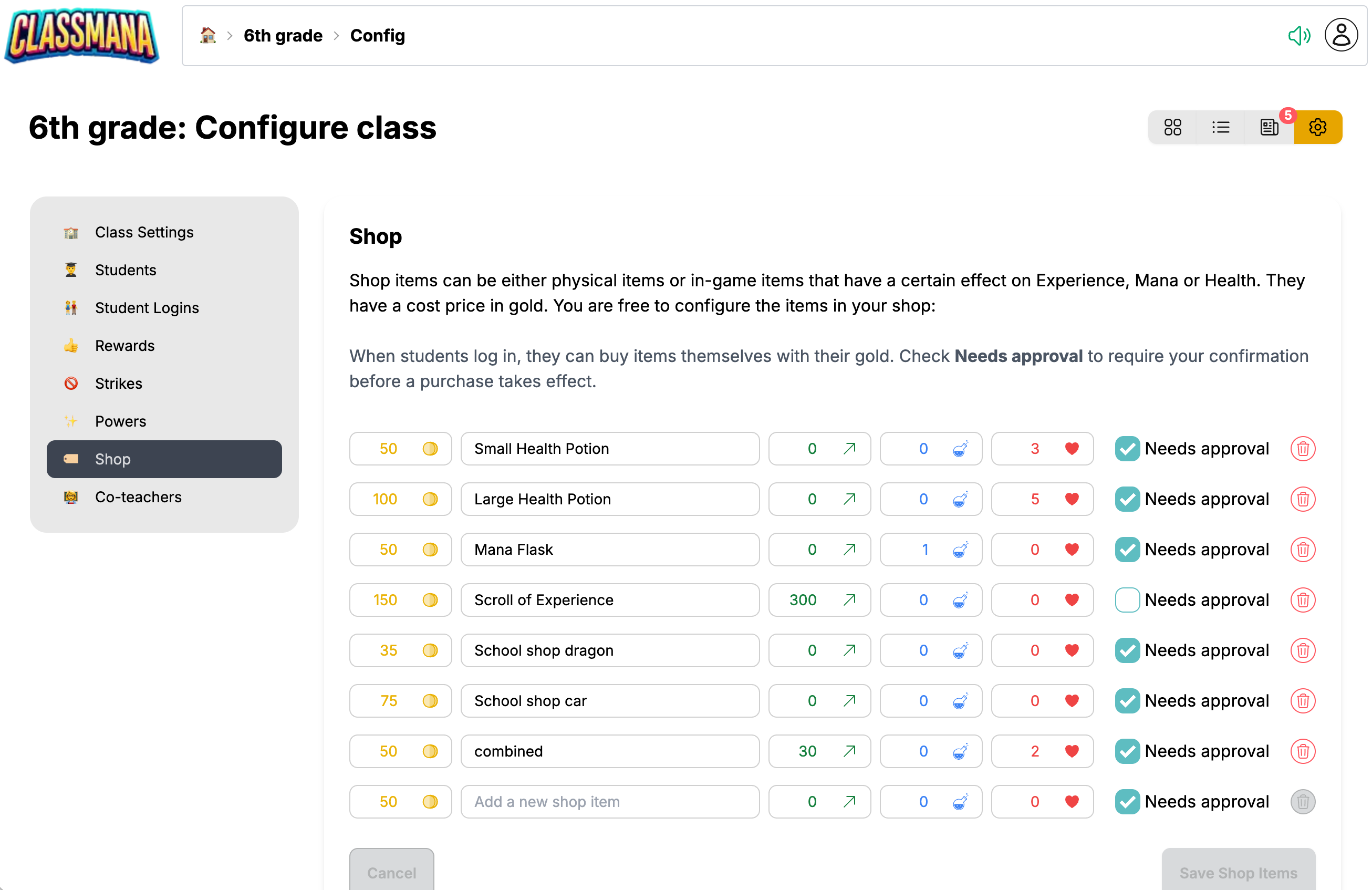
Create items students can purchase with their gold:
- Go to Class Settings → Shop
- Click "Add Item"
- Configure the item:
- Name - What the item is called (e.g., "Homework Pass")
- Gold Cost - How much gold it costs
- Effects - Optional stat bonuses (Experience, Mana, Health)
- Needs Approval - Whether you must approve purchases
- Click "Save Shop Items"
Types of Shop Items
In-game items provide stat bonuses when purchased:
- Mana potion (+1 Mana, 100 gold)
- Experience boost (+200 Experience, 75 gold)
- Health restore (+2 Health, 50 gold)
Real-life rewards require you to fulfill them:
- A physical school store item
- Homework pass
Buying Items for Students
As a teacher, you can purchase shop items on behalf of students directly from the class dashboard.
Accessing the Buy Panel
- Navigate to your class dashboard
- Find the student who wants to buy an item
- Click on the student's card or avatar
- Click the "Buy Item" button
Buying a Single Item
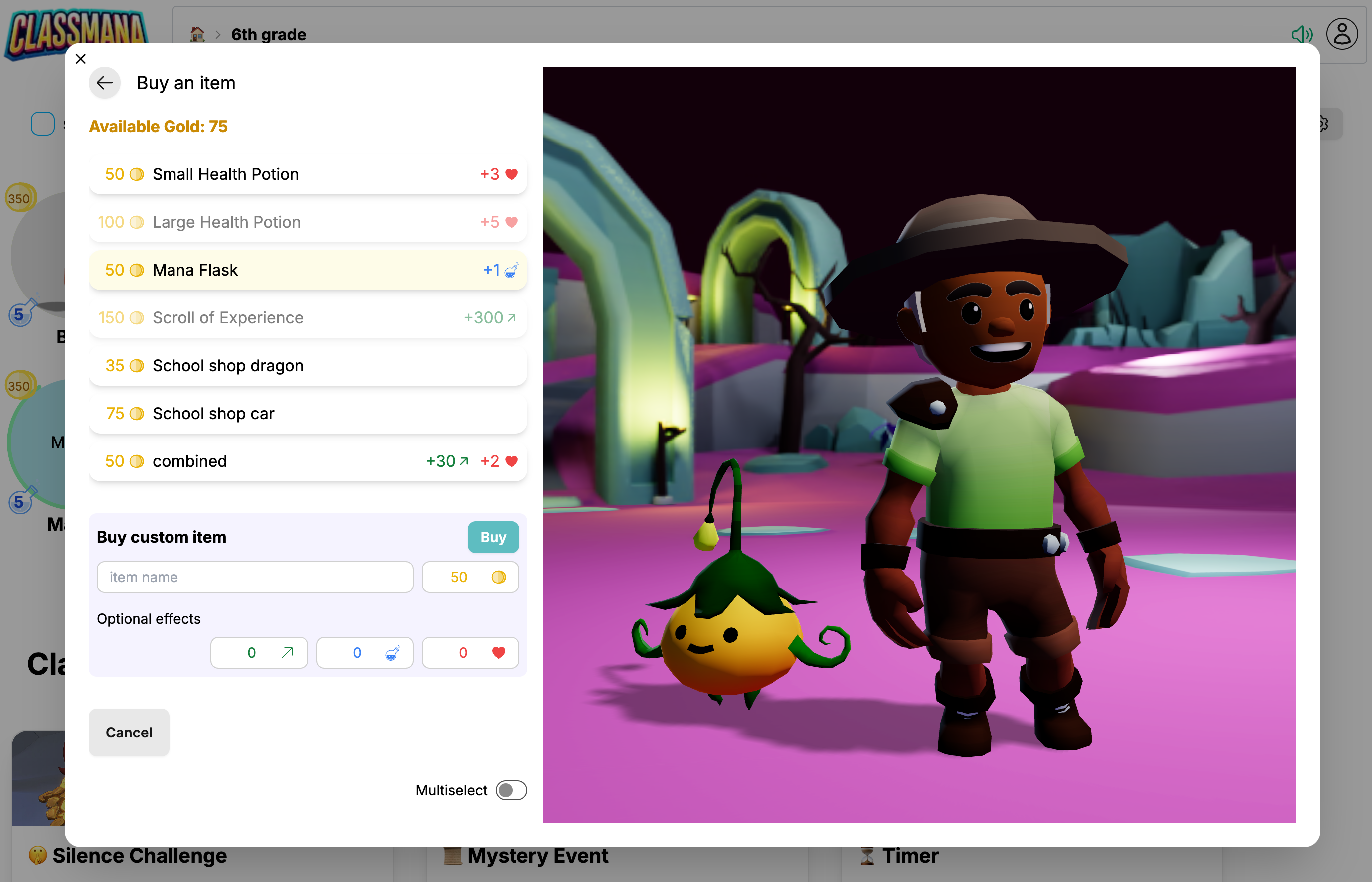
When the buy panel opens, you'll see:
- Available Gold - The student's current gold balance
- Shop Item List - All configured shop items for your class
Each item displays:
- Gold Cost - How much gold the item costs
- Name - The item's title
- Effects - Any stat bonuses (Experience, Mana, Health)
Simply click on an item to purchase it immediately.
After clicking, you'll see a confirmation toast message showing the purchase was completed. The student's gold balance and stats update instantly.
Quick Tip
Purchases are applied immediately when clicked. There's no confirmation dialog, so you can rapidly process multiple purchases in succession.
Buying a Custom Item
Sometimes you need to process a purchase that isn't in your configured shop. Use the Custom Item section at the bottom of the buy panel:
- Set the Values
- Name - Type a description for the item
- Gold Cost - Set how much gold to deduct
- Experience - Optionally add experience points
- Mana - Optionally add mana points
- Health - Optionally add health points (if health is enabled)
- Click the "Buy" button to complete the custom purchase
Saving Custom Items
Custom purchases are one-time only. If you find yourself processing the same custom item repeatedly, consider adding it to your shop configuration in Class Settings → Shop.
Using Multiselect Mode
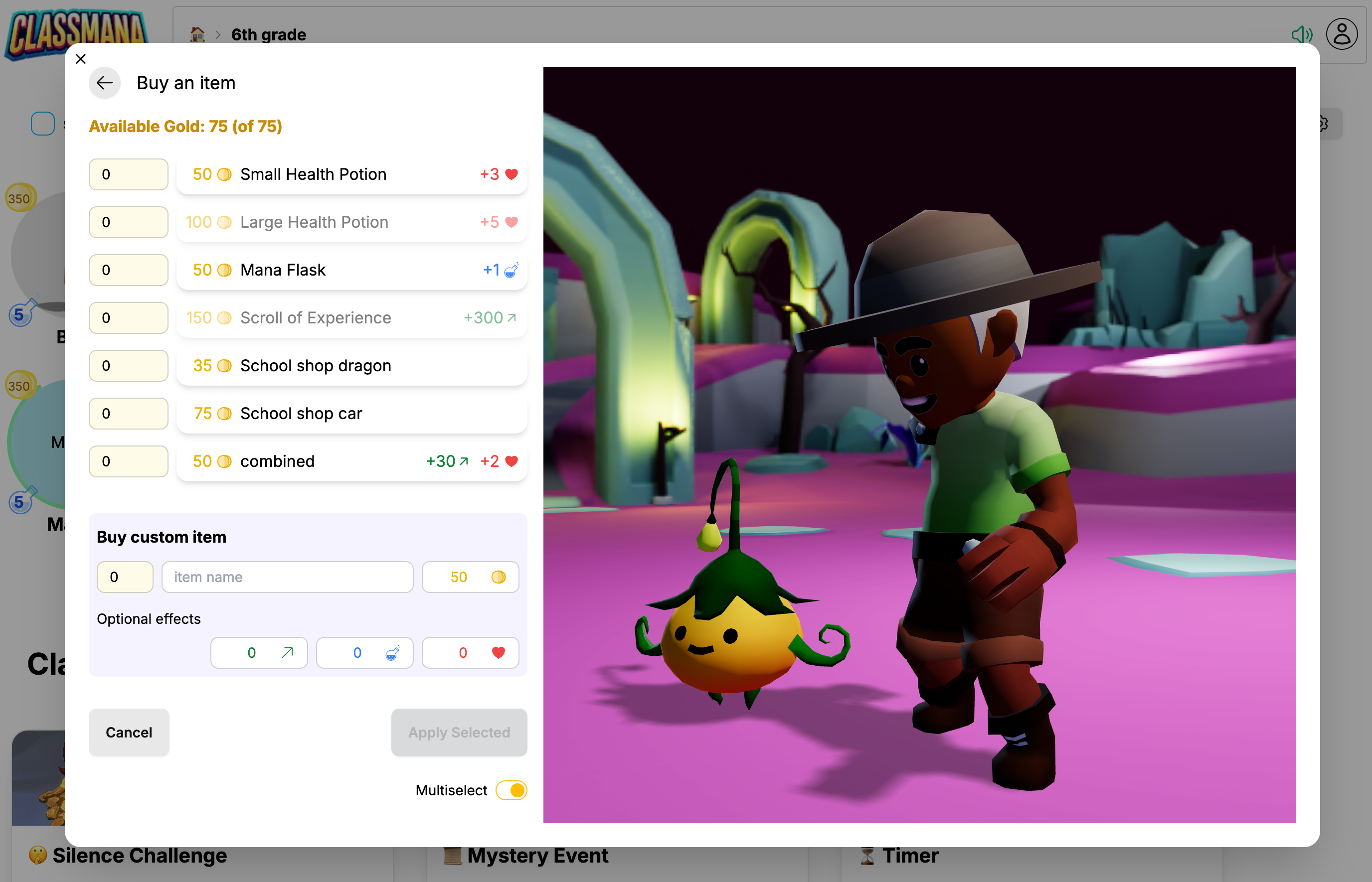
For situations where a student wants to purchase multiple items at once, use Multiselect Mode:
Step 1: Enable Multiselect Mode
Toggle the Multiselect switch at the bottom of the buy panel.
Step 2: Select Item Quantities
In multiselect mode, each shop item shows a number input field:
- Click an item to increment its quantity by 1
- Or type a specific number in the input field
- Set quantities for multiple different items
As you select items, the available gold counter updates to show:
- Available Gold - Remaining gold after selected items
- Total Gold - Student's full gold balance
Example: Available gold: 50 (of 200) - means 150 gold is allocated to selected items, leaving 50 available.
Step 3: Apply All Selected Purchases
Click the "Apply Selected" button to process all items with quantities greater than 0. Each item is purchased the specified number of times.
Example use case: A student saved up gold and wants to buy 2 "Mana Potions" and 1 "Homework Pass". Set "Mana Potion" to 2 and "Homework Pass" to 1, then apply all at once.
Custom Items in Multiselect
You can also set a quantity for custom items in multiselect mode. Configure your custom item values, then enter the quantity in the number field next to the name.
Managing Student Purchases
If students have accounts, they can request purchases themselves. You control how these requests are handled.
Approval Mode (Recommended)
With approval mode enabled, student purchases require your confirmation:
- Student requests to purchase item from their dashboard
- Request appears in your Activity page
- You see:
- Student name
- Item requested
- Gold cost
- Click "Approve" or "Deny"
- If approved:
- Gold is deducted from the student
- In-game effects are applied automatically
- Real-life rewards need to be fulfilled by you
Configure in: Class Settings → Shop → Enable "Require Approval"
Why Use Approval Mode?
Approval mode gives you control over when rewards are used, prevents accidental purchases, and lets you verify students have earned their gold legitimately.
Direct Mode
With direct mode, students can purchase instantly:
- Student clicks to buy in their dashboard
- Gold is deducted immediately
- In-game effects are applied automatically
- Activity is logged for your review
Configure in: Class Settings → Shop → Disable "Require Approval"
Common Questions
Can I undo a purchase?
Purchases cannot be undone automatically. If a purchase was made by mistake, you can manually adjust the student's gold and stat balances.
How do I track what students have bought?
All purchases are logged in the activity history. You can view purchases from the Activity page or in individual student profiles.
Should I use real-life rewards or in-game effects?
Both work well! In-game effects (mana, experience) are automatically applied and require no extra work. Real-life rewards (homework passes, privileges) create stronger real-world connections but require you to honor them.
What if students hoard gold and never spend it?
Consider adding limited-time items, creating exciting high-value rewards, or running "sales" where items cost less gold for a short period.
Best Practices
Getting Started
- Start with 5-10 items - Mix of in-game effects and real-life rewards
- Price items appropriately - Most items should be affordable within 1-2 weeks of earning
- Explain the system - Make sure students understand how gold and the shop work
- Update regularly - Add new items to keep the shop fresh and exciting
Maintaining Engagement
- Variety in pricing - Have cheap daily treats and expensive long-term goals
- Seasonal items - Add special items for holidays or class events
- Student input - Ask students what rewards they'd like to see
- Track spending patterns - Adjust prices based on what sells
Common Pitfalls to Avoid
- Don't overprice everything - Students should be able to buy something regularly
- Don't forget real-life rewards - If a student buys a homework pass, honor it
- Don't make gold too rare - Include gold in most rewards so students can participate
- Don't neglect the shop - An unchanging shop loses its appeal over time
Next Steps
Once your class is comfortable with the gold system, consider:
- Best Practices - Strategies for maintaining engagement throughout the year
- Class Management - Tips for monitoring your classroom economy
- Teacher Guide - Overview of combining all stages effectively
If you haven't enabled earlier stages yet:
- Stage 2: Student Accounts - Give students their own logins so they can browse the shop
- Stage 3: Health System - Add health points that can be restored with shop items