
Create a Class
Creating a class unlocks the full gamification features of ClassMana. Currently free, but will require a paid subscription in the future.
What You Need
What creating a class enables:
- Experience points and leveling system
- Mana and powers
- Rewards system
- Avatar customization (Stage 2)
- Health and strikes (Stage 3)
- Gold and shop (Stage 4)
- Activity tracking
Creating Your Class
Step 1: Click "Create Class"
From your dashboard, click the large "+" card or "Create Class" button.
Step 2: Enter Class Name
A dialog will appear asking for your class name.
Examples:
- "Period 3 Math"
- "5th Grade Homeroom"
- "Ms. Smith's Science"
Enter the name and click "Create Class".
Three-Step Setup Wizard
After creating your class, you'll go through a 3-step setup wizard to configure students, rewards, and powers.
Step 1: Import Students
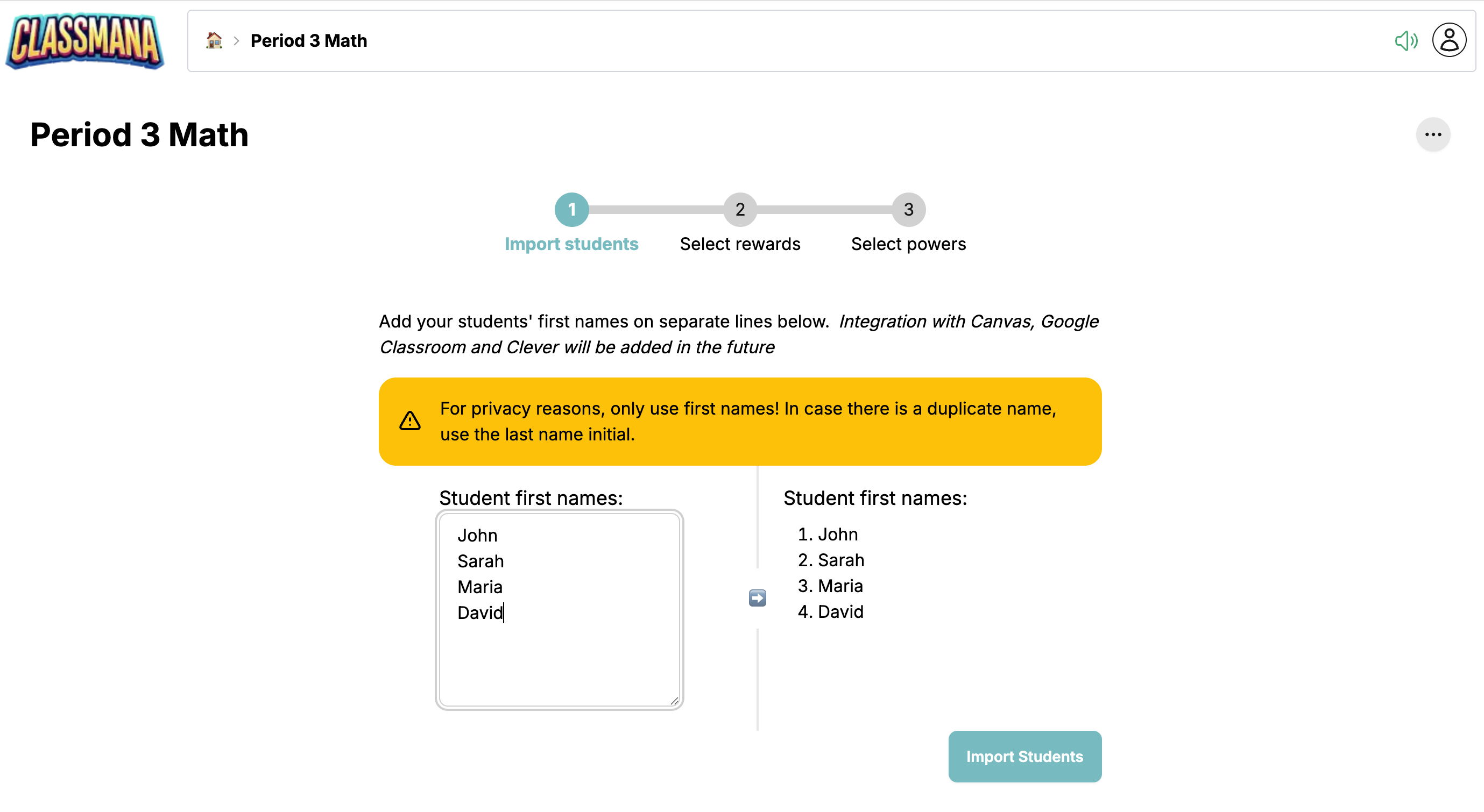
Add your students one per line.
For security reasons, only use their first names. When there are duplicates, use first names with last initials (e.g., "John D.", "John S.").
Quick Import
Copy/paste from a spreadsheet works great! You can also edit names later in Class Settings.
Click "Import Students" when done (or skip to add students later).
Step 2: Configure Rewards
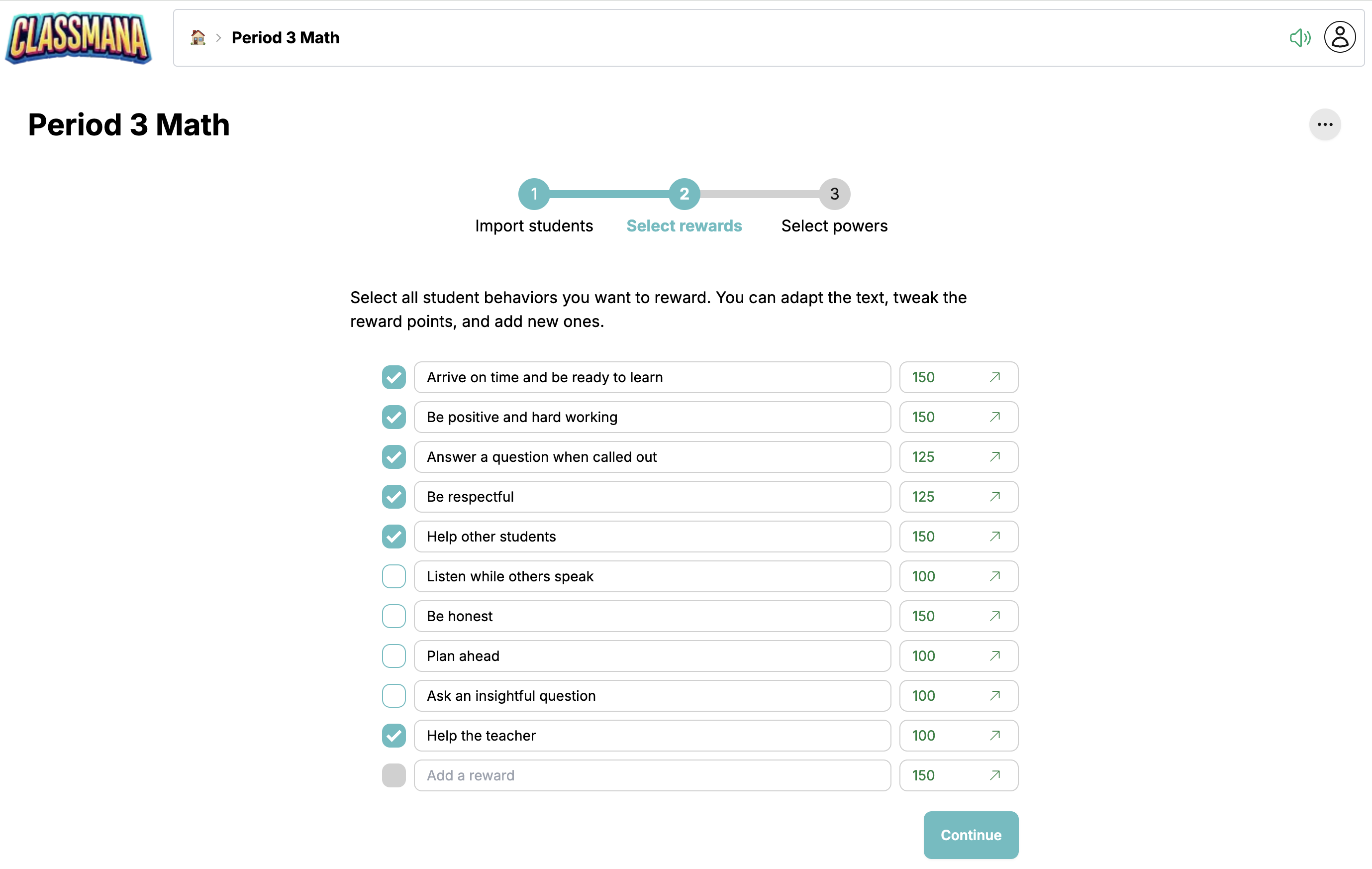
Select from suggested rewards or create your own custom rewards.
Each reward can give Experience - The primary currency for leveling up
Select the rewards you want to use, customize point values if needed, add your own, then click "Continue".
Customize Anytime
Don't worry about getting rewards perfect now. You can add, edit, or remove rewards anytime from Class Settings.
Step 3: Configure Powers
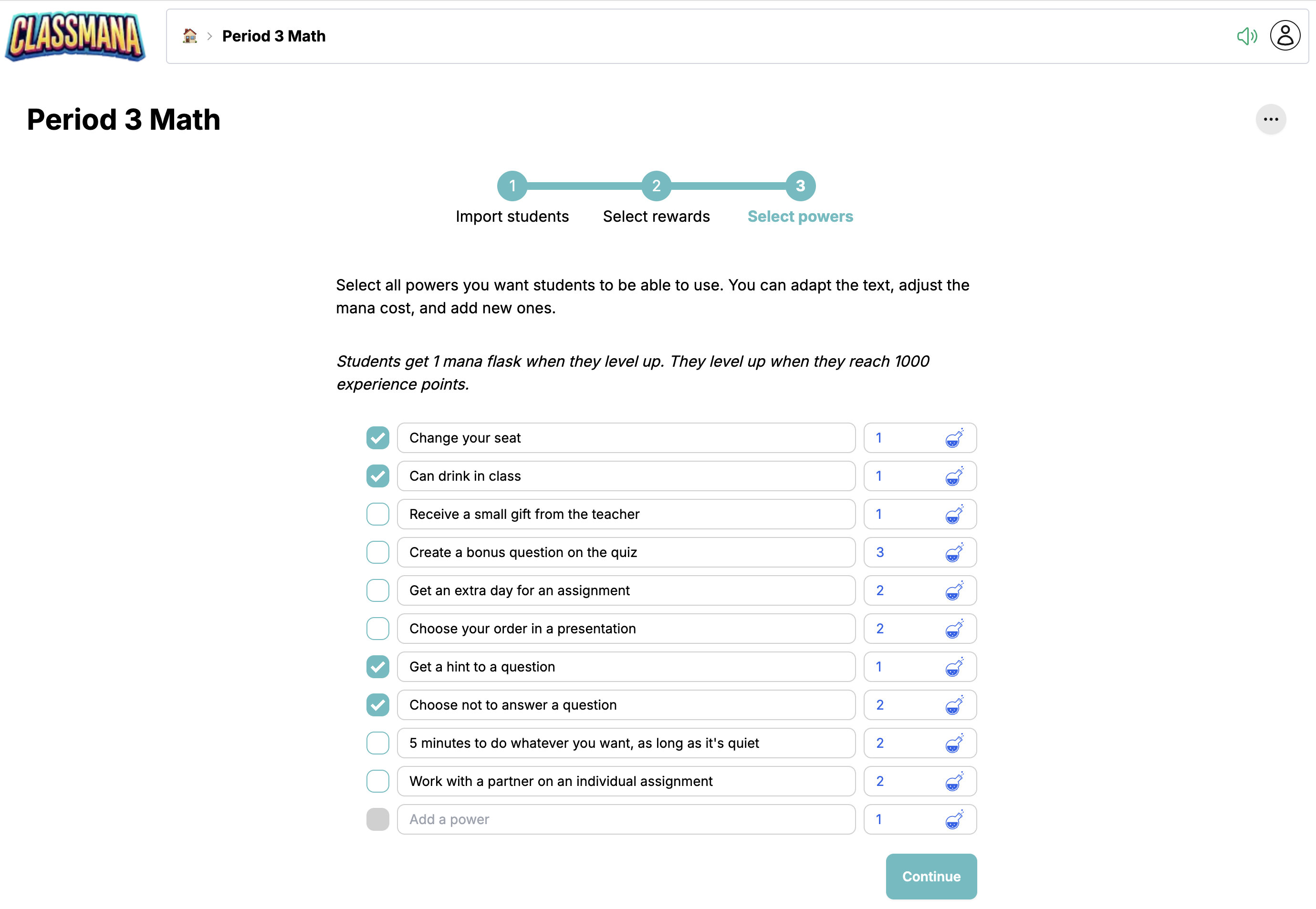
Select from suggested powers or create your own custom powers.
Powers are special perks students can "purchase" using their mana:
- Choose which powers to enable
- Set the mana cost for each power (1-5 mana)
- Customize power names to match your classroom
Click the powers you want to enable, then click "Finish Setup".
You're Done!
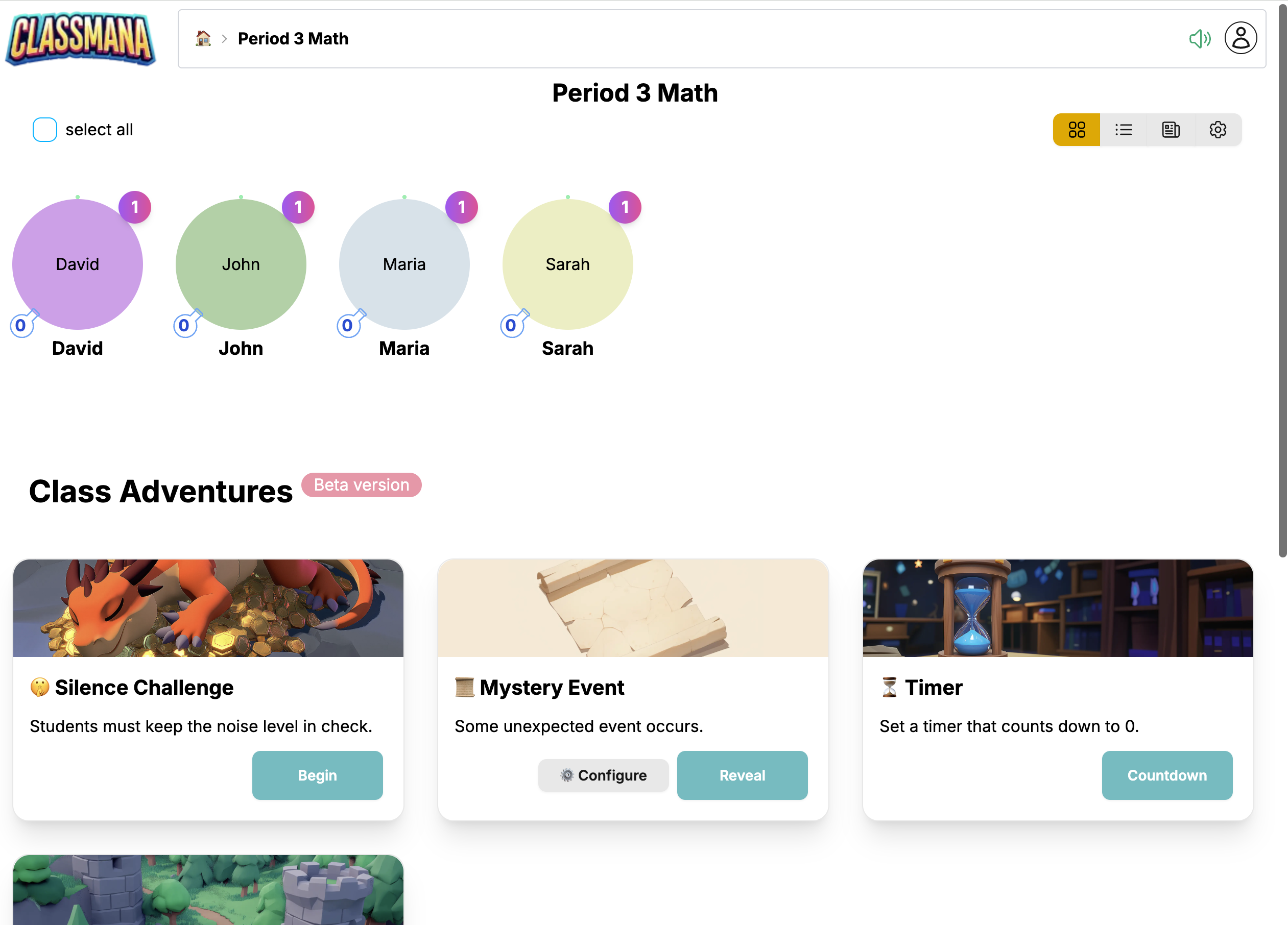
Your class dashboard will now show your students (if you added any) and you're ready to start giving rewards.
Next Steps After Setup
Give Your First Rewards
Click on a student and select a reward to give them experience points. See Giving Rewards for detailed instructions.
Explore the Dashboard
Learn how to navigate and use all dashboard features in the Class Dashboard guide.
Configure Class Settings
Click the gear icon in the dashboard navigation to access settings:
- Class - Edit name, weekly mana schedule, feature toggles
- Students - Add, edit, or remove students
- Rewards - Customize your reward list
- Powers - Enable/disable and customize powers
- Co-Teachers - Invite other teachers to help manage
Invite Co-Teachers
Want another teacher to help manage your class?
- Go to Settings → Co-Teachers
- Enter the teacher's email address
- They'll receive an invitation to join
Co-teacher permissions:
- ✅ Give rewards and use powers
- ✅ Manage students and view activity
- ❌ Cannot change class settings
- ❌ Cannot delete the class
Managing Multiple Classes
You can create multiple classes. Each class is completely independent:
- Students can't see other classes
- Settings are separate per class
- Activity logs are separate
To switch between classes:
- Click the home icon to return to your main dashboard
- Click on the class you want to manage
Pricing Information
Current Status: FREE
Class Adventure is currently free during beta. In the future, it will require a paid subscription. See Pricing for details.
What's free now:
- Create unlimited classes
- Add unlimited students
- Access all stages and features
- Full support
Common Questions
Can I edit the class name later?
Yes! Go to Settings → Class and change the name anytime.
Can I add students after setup?
Yes! Go to Settings → Students and click "Add Student".
Can I skip the setup wizard?
Yes! You can skip adding students, rewards, or powers during setup and add them later in Settings.
What if I make a mistake?
Everything can be edited later. Don't worry about getting it perfect during setup.
Can I delete a class?
Yes, in Settings → Class → Delete Class. This cannot be undone!
Can I import settings from one class to another?
Not currently, but it's a planned feature for the future.
Next Steps
Now that your class is created:
- Explore the Dashboard - Learn how to navigate and manage your class
- Stage 1: Rewards & Powers - Start using the gamification system
- Best Practices - Tips for keeping students engaged