
Class Dashboard
The Class Dashboard is your central hub for managing a class. From here you can view students, give rewards, use powers, track activity, and configure class settings.
Accessing the Dashboard
After creating a class, you'll land on the class dashboard automatically. To return to it later:
- Go to your main dashboard
- Click on the class card you want to manage
Dashboard Navigation
The dashboard has four main views, accessible from the navigation bar in the top right:
| Icon | View | Description |
|---|---|---|
| Grid | Student Grid | Visual cards showing each student |
| List | Student Table | Compact table view with more details |
| Activity | Activity Log | Recent actions and pending requests |
| Gear | Configuration | Class settings and customization |
Student Grid View
The Student Grid is the default view, showing each student as a visual card.
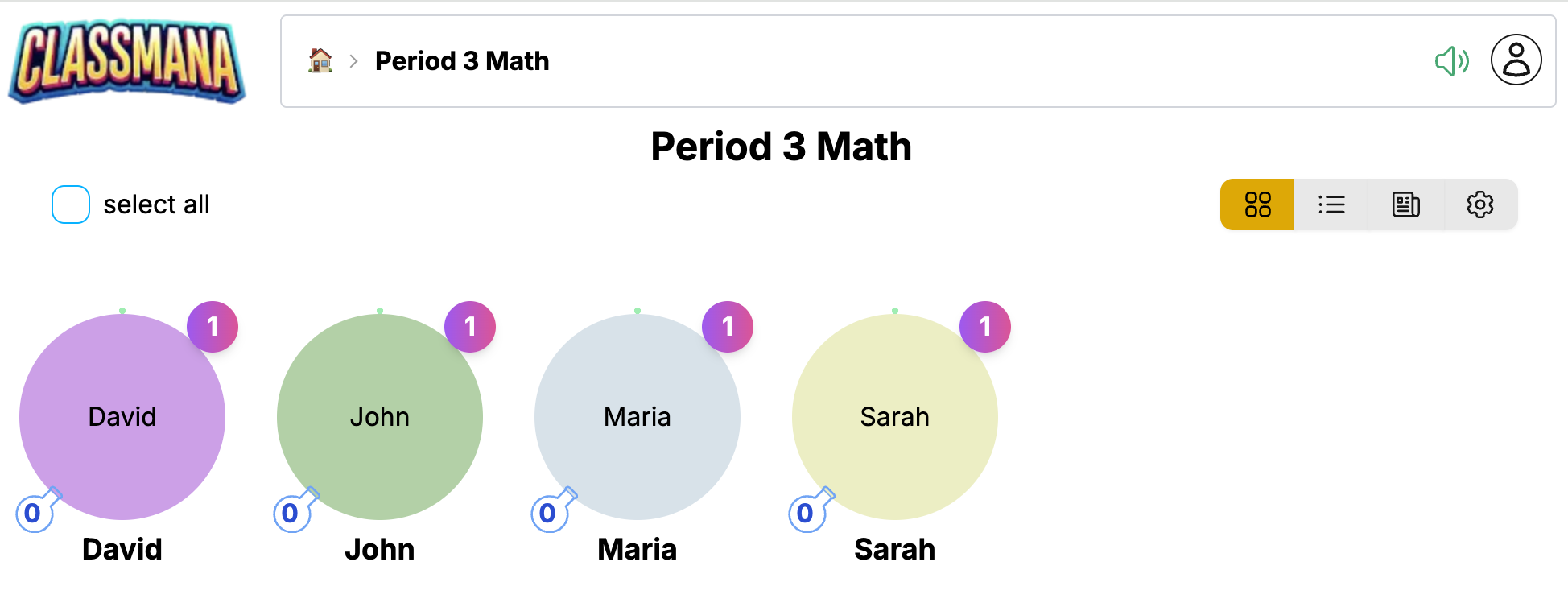
Each student card displays:
- Avatar - The student's 3D character (or placeholder if not unlocked)
- Name - The student's display name
- Level - Current level and experience progress bar
- Mana - Available mana flasks for casting powers
- Health - Current health points (if Stage 3 is enabled)
- Gold - Gold balance (if Stage 4 is enabled)
Interacting with Students
Click on a student card to open the action menu:
- Reward - Give experience, mana, health, or gold
- Use Power - Cast a power using the student's mana
- Strike - Deduct health points (if Stage 3 is enabled)
- Profile - View detailed student information
Selecting Multiple Students
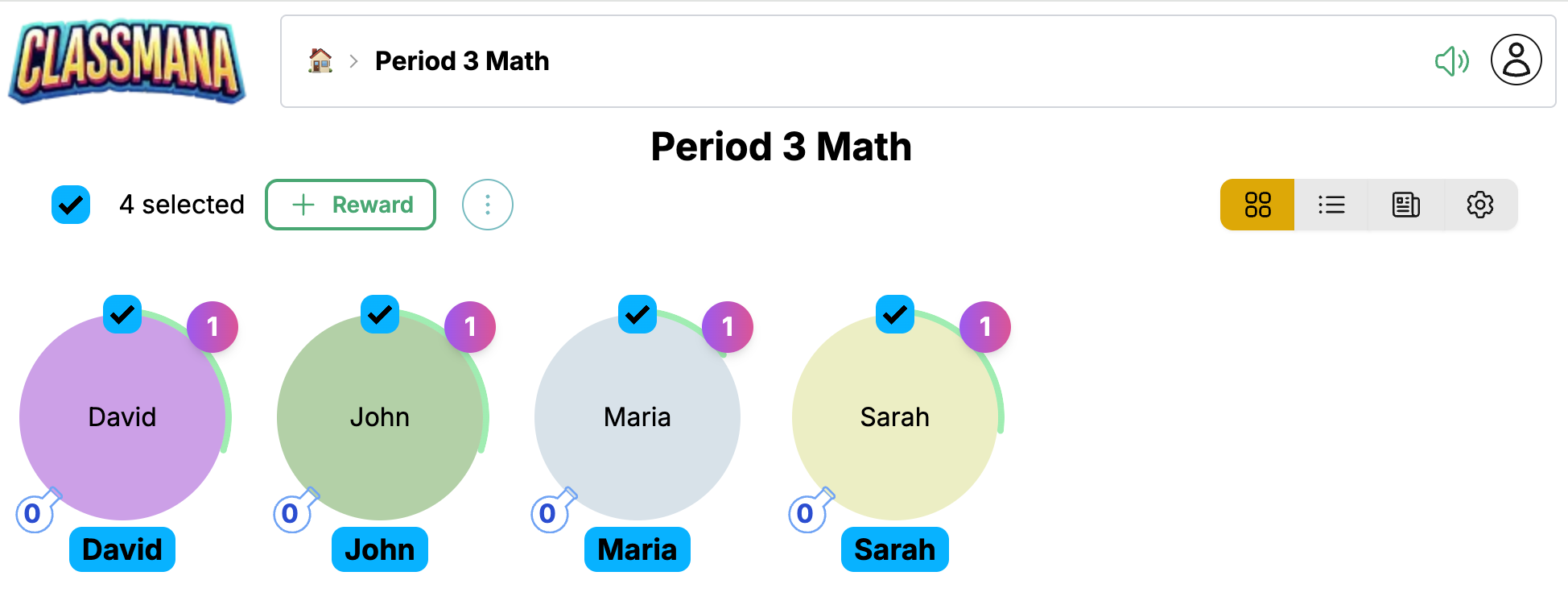
Use the checkbox on each card to select multiple students, then perform bulk actions:
- Click the checkbox on each student you want to select
- Or use "Select All" to select the entire class
- Click Reward to apply to all selected students
Quick Selection
The selection counter shows how many students are selected. Click "Select All" to quickly select everyone, then deselect individuals if needed.
Student Table View
The Student Table provides a compact, spreadsheet-like view of your class.
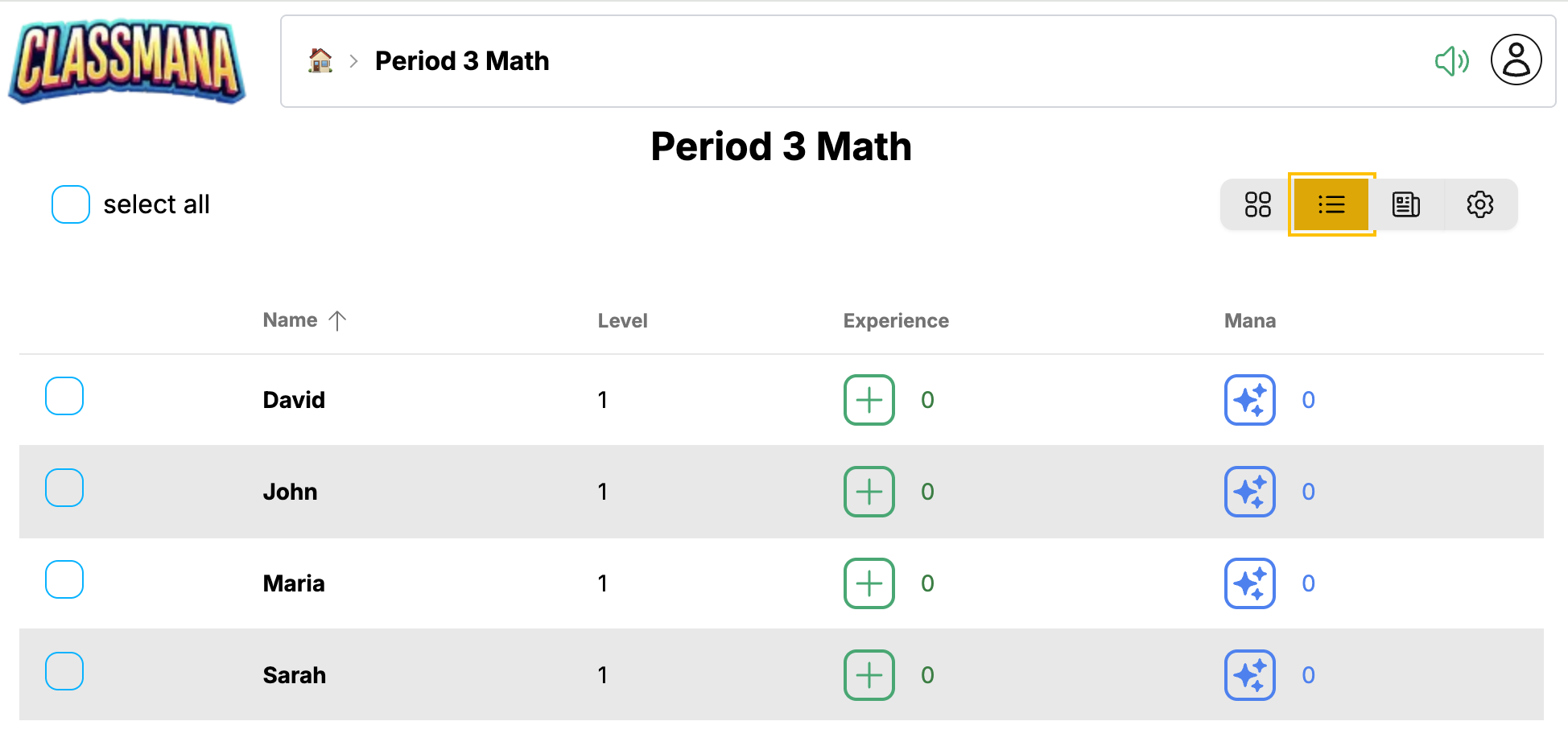
This view is ideal for:
- Seeing all student stats at a glance
- Quickly comparing student progress
- Managing larger classes efficiently
The table displays columns for:
- Name - Student name (click to open actions)
- Level - Current level
- Experience - Total experience points
- Mana - Available mana
- Health - Current health (if Stage 3 is enabled)
- Gold - Gold balance (if Stage 4 is enabled)
Click on any row to access the same action menu as the grid view.
Activity Log
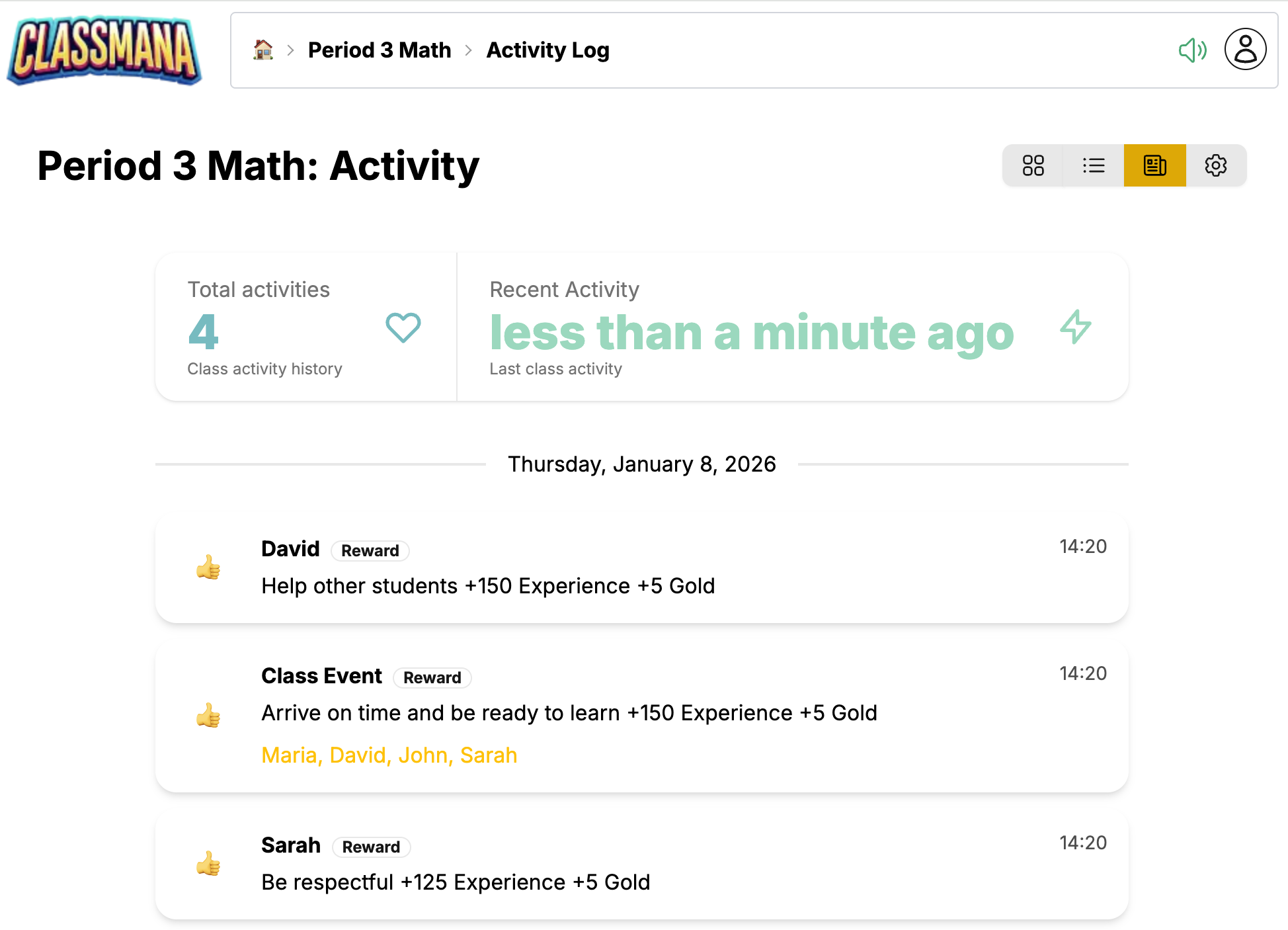
The Activity Log shows recent actions in your class and any pending student requests.
Recent Activity
The activity feed displays:
- Rewards given - Who received what and when
- Powers used - Which powers students have cast
- Strikes given - Health deductions (if Stage 3 is enabled)
- Purchases - Shop transactions (if Stage 4 is enabled)
- Level ups - Celebrate student achievements
Each entry shows:
- Timestamp
- Student name
- Action description
- Point values affected
Pending Requests
If you've enabled student requests (Stage 2), pending items appear at the top:
- Power requests - Students requesting to use powers
- Purchase requests - Students wanting to buy shop items
Click Approve or Deny to handle each request.
Request Notifications
The Activity icon in the navigation bar shows a badge with the number of pending requests, so you'll always know when students need your attention.
Configuration
The Configuration view lets you customize all aspects of your class.
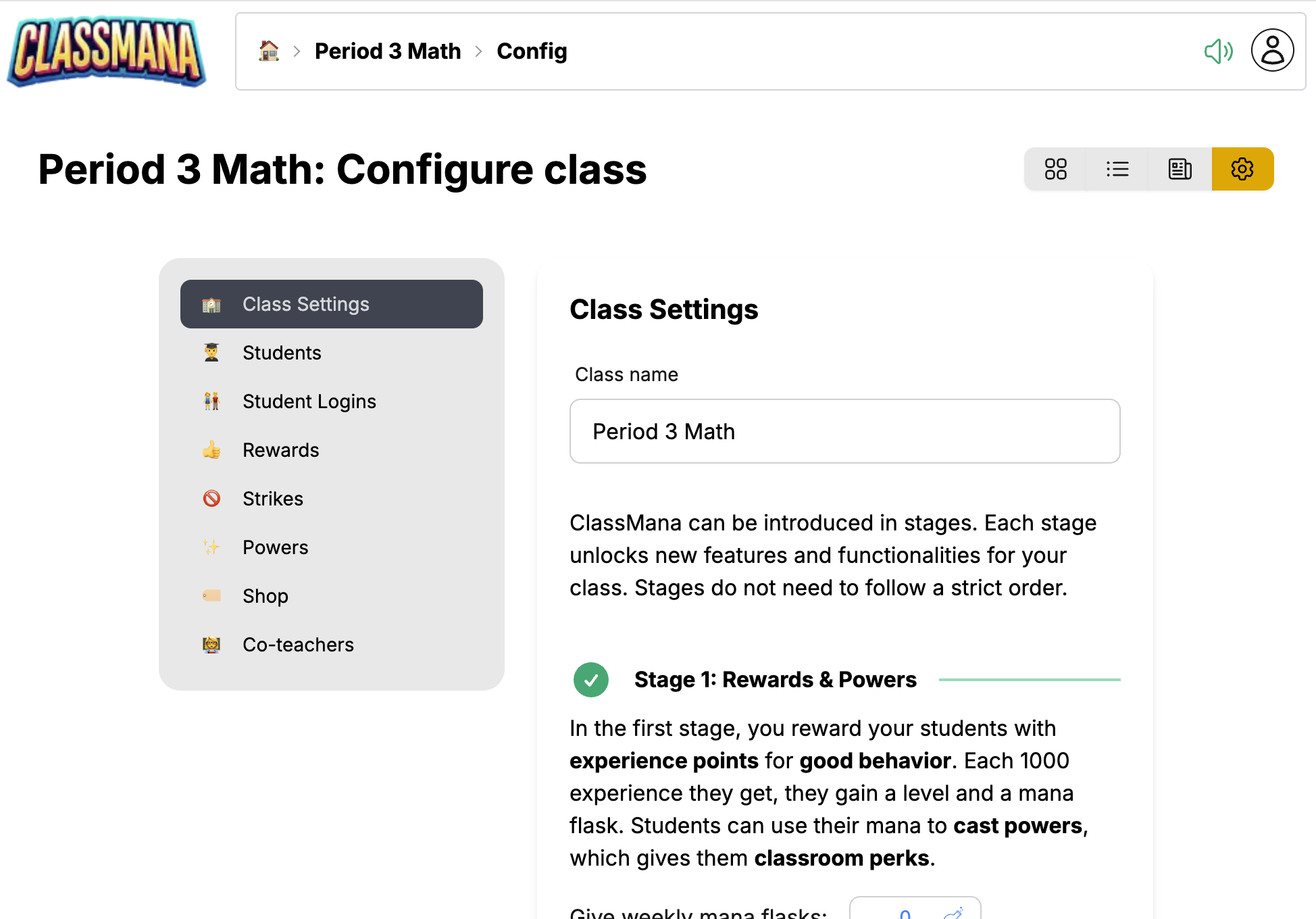
Configuration is organized into panels:
Class Settings
- Class name - Edit your class display name
- Weekly mana schedule - Automatic mana distribution days
- Feature toggles - Enable/disable health, gold, teams, etc.
Rewards
- View and edit your reward list
- Add new rewards with custom point values
- Delete rewards you no longer need
Powers
- Enable/disable individual powers
- Adjust mana costs
- Customize power names
Students
- Add or remove students
- Edit student names
- Reset individual student stats
Strikes (Stage 3)
- Configure strike types and health penalties
- Appears when health system is enabled
Shop Items (Stage 4)
- Add items students can purchase
- Set gold prices
- Appears when gold system is enabled
Co-Teachers
- Invite other teachers to help manage your class
- Co-teachers can give rewards and manage students
Quick Access
You can also access specific configuration panels directly from other views. For example, clicking "Edit Rewards" from the reward panel takes you straight to the Rewards configuration.
Common Tasks
Giving a Reward
- Click on a student (grid or table view)
- Click Reward
- Select a reward from your list or create a custom one
See Giving Rewards for detailed instructions.
Using a Power
- Click on a student
- Click Use Power
- Select the power to cast
See Using Powers for detailed instructions.
Adding a Student
- Go to Configuration → Students
- Click Add Student
- Enter the student's name
Removing a Student
- Go to Configuration → Students
- Find the student in the list
- Click the delete icon
Deleting Students
Removing a student permanently deletes their progress and cannot be undone. Consider making them inactive instead if you might need their data later.
Next Steps
Now that you're familiar with the dashboard:
- Stage 1: Rewards & Powers - Learn how to effectively reward students and manage powers
- Best Practices - Tips for keeping students engaged throughout the year