
Using Powers for Students
Powers are special perks or privileges that students can "cast" by spending their mana points. As a teacher, you can help students use their powers when they request them. This guide walks you through the different ways to cast powers efficiently.
Accessing the Power Panel
From the Class Dashboard
- Navigate to your class dashboard
- Find the student who wants to use a power
- Click on the student's card or avatar
- Click the "Use Power" button
Casting a power for a single student from the class dashboard.
Casting a Single Power
The quickest way to cast a power is by clicking on it directly. When the power panel opens, you'll see:
- Available Mana - The student's current mana balance
- Power List - All configured powers for your class
Each power displays:
- Name - The power's title
- Description - What the power does
- Mana Cost - How much mana it costs to cast
- Status - Whether the student has enough mana
Simply click on a power to cast it immediately.
After clicking, you'll see a confirmation toast message showing the power was cast. The student's mana balance updates instantly.
Quick Tip
Powers are cast immediately when clicked. There's no confirmation dialog, so you can rapidly cast multiple powers in succession if needed.
Understanding Mana Costs
Each power has a mana cost that is deducted from the student's balance when cast:
- Students earn 1 mana every time they level up
- The mana balance is shown at the top of the power panel
- Powers are disabled if the student doesn't have enough mana
Not Enough Mana
If a student doesn't have enough mana for a power, it will appear grayed out and cannot be clicked. The student needs to earn more experience and level up to gain additional mana points.
Using Multiselect Mode
For situations where a student wants to use multiple powers at once, use Multiselect Mode:
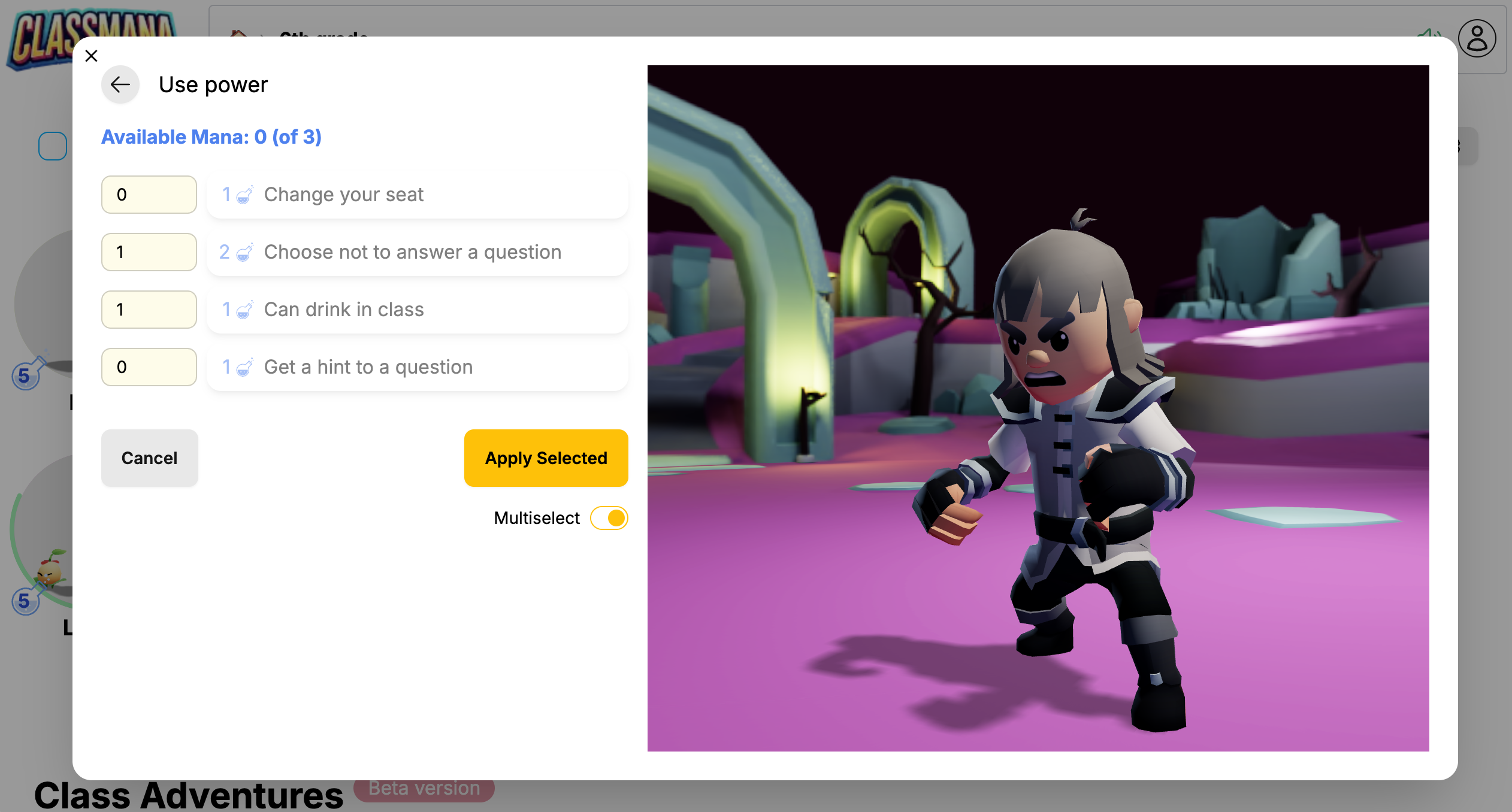
Step 1: Enable Multiselect Mode
Toggle the Multiselect switch at the bottom of the power panel.
Step 2: Select Power Quantities
In multiselect mode, each power shows a number input field:
- Click a power to increment its quantity by 1
- Or type a specific number in the input field
- Set quantities for multiple different powers
As you select powers, the available mana counter updates to show:
- Available Mana - Remaining mana after selected powers
- Total Mana - Student's full mana balance
Example: Available mana: 3 (of 8) - means 5 mana is allocated to selected powers, leaving 3 available.
Step 3: Apply All Selected Powers
Click the "Apply Selected" button to cast all powers with quantities greater than 0. Each power is cast the specified number of times.
Example use case: A student wants to use "Homework Pass" twice and "Choose Seat" once. Set "Homework Pass" to 2 and "Choose Seat" to 1, then apply all at once.
Insufficient Mana
The "Apply Selected" button is disabled if the total mana cost exceeds the student's available mana. Reduce quantities or deselect some powers to proceed.
Tracking Powers
All cast powers are logged in the student's activity history. You can review what powers have been used and when, helping you remember which privileges to honor.
Common Questions
Can I undo a cast power?
Powers cannot be undone automatically. If a power was cast by mistake, you can manually adjust the student's mana balance by modifying their mana points.
What if a student forgets they used a power?
Check the student's activity log to see their complete power usage history, including timestamps and descriptions.
Can students cast powers themselves?
If students have accounts and you enable the setting, they can request to cast powers themselves. You'll receive a notification and can approve or deny the request. Otherwise, powers are teacher-managed as shown in this guide.