
Mystery Event
Mystery Events are fun, quick activities to keep your class engaged. Use them to start your class with excitement, as a reward, or as a brain break. Each event takes 1 to 5 minutes and adds an element of surprise to your classroom routine.
Accessing Mystery Events
Instant Teacher Tools
Navigate to Mystery Events from:
- 🏠 Dashboard → Teacher Tools → Mystery Event
This version works without setting up a class. Perfect for trying it out or when you just need a quick activity.
Class Adventures
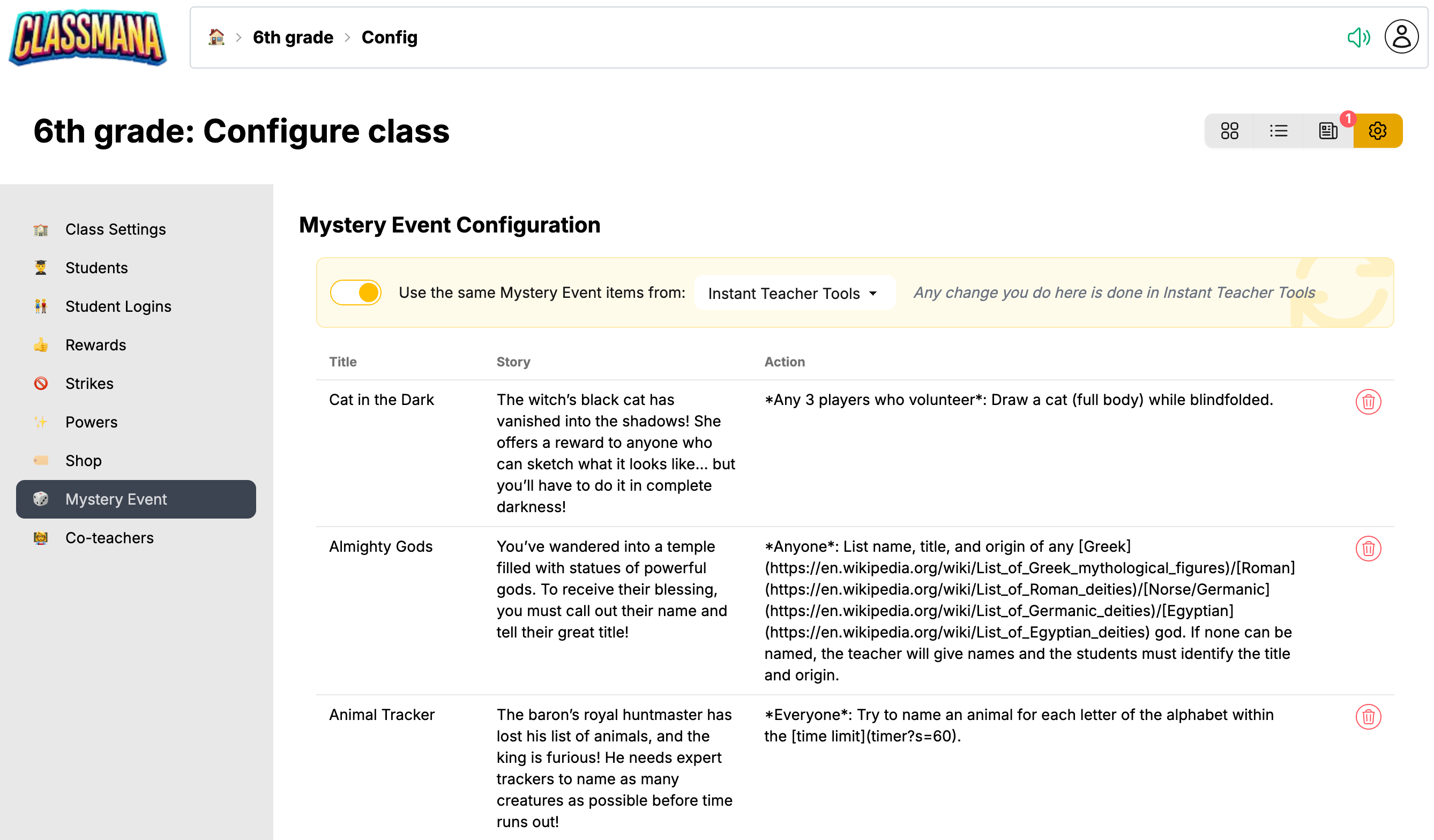
When using Mystery Events from within a class, each class can have its own set of events — or sync them from another class. Access it from your class configuration under 🏠 Dashboard → Class → ⚙️ Config → 🎲 Mystery Event
Using Mystery Events
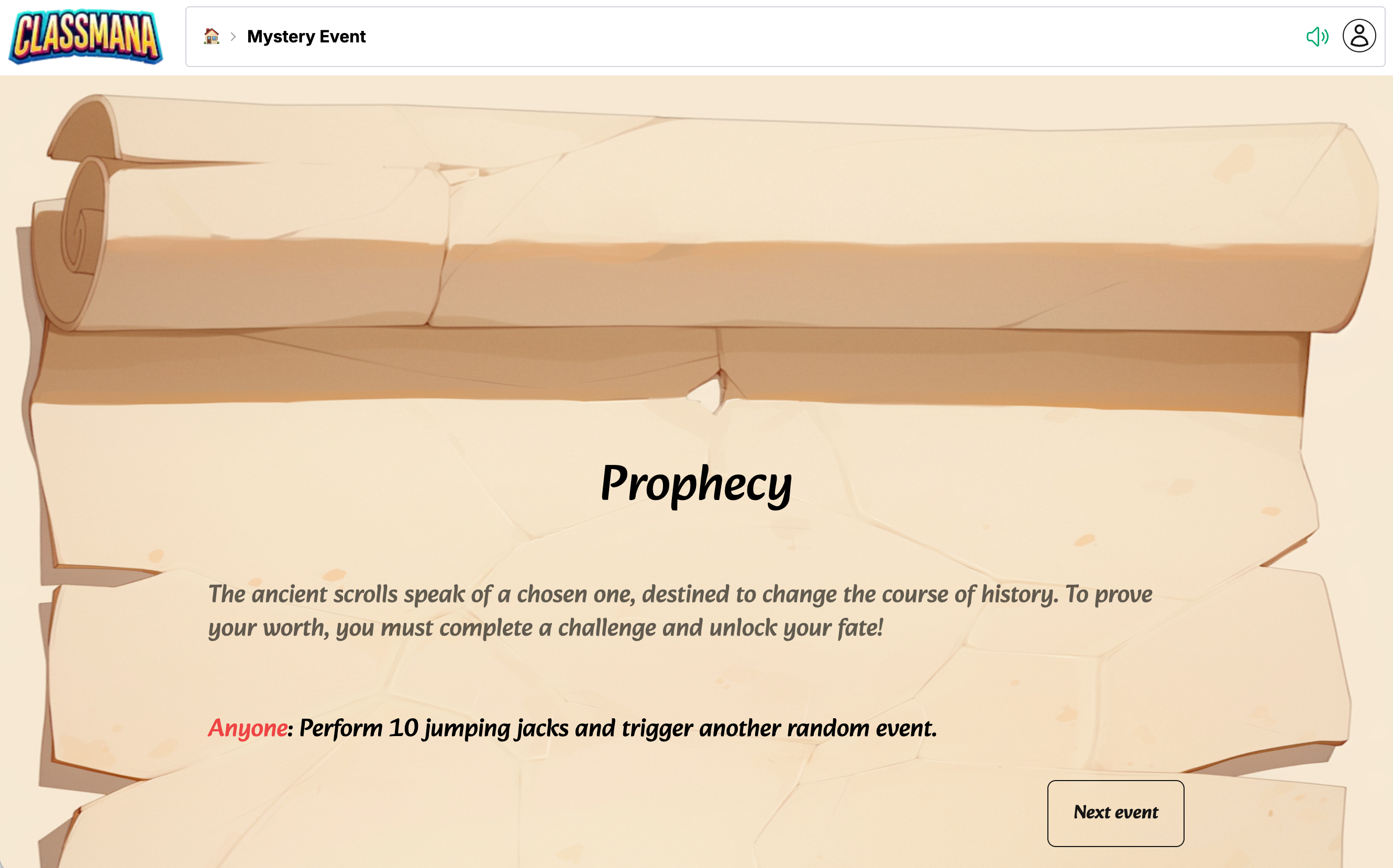
- Click the Mystery Event card to open the event screen
- A random event will be displayed with a story and activity
- Follow the instructions with your class
- Click Next Event to get another random event
Events are chosen randomly, but the system avoids repeating recently used events to keep things fresh.
Configuring Events
Click the Configure button (⚙️) to customize which events are available.
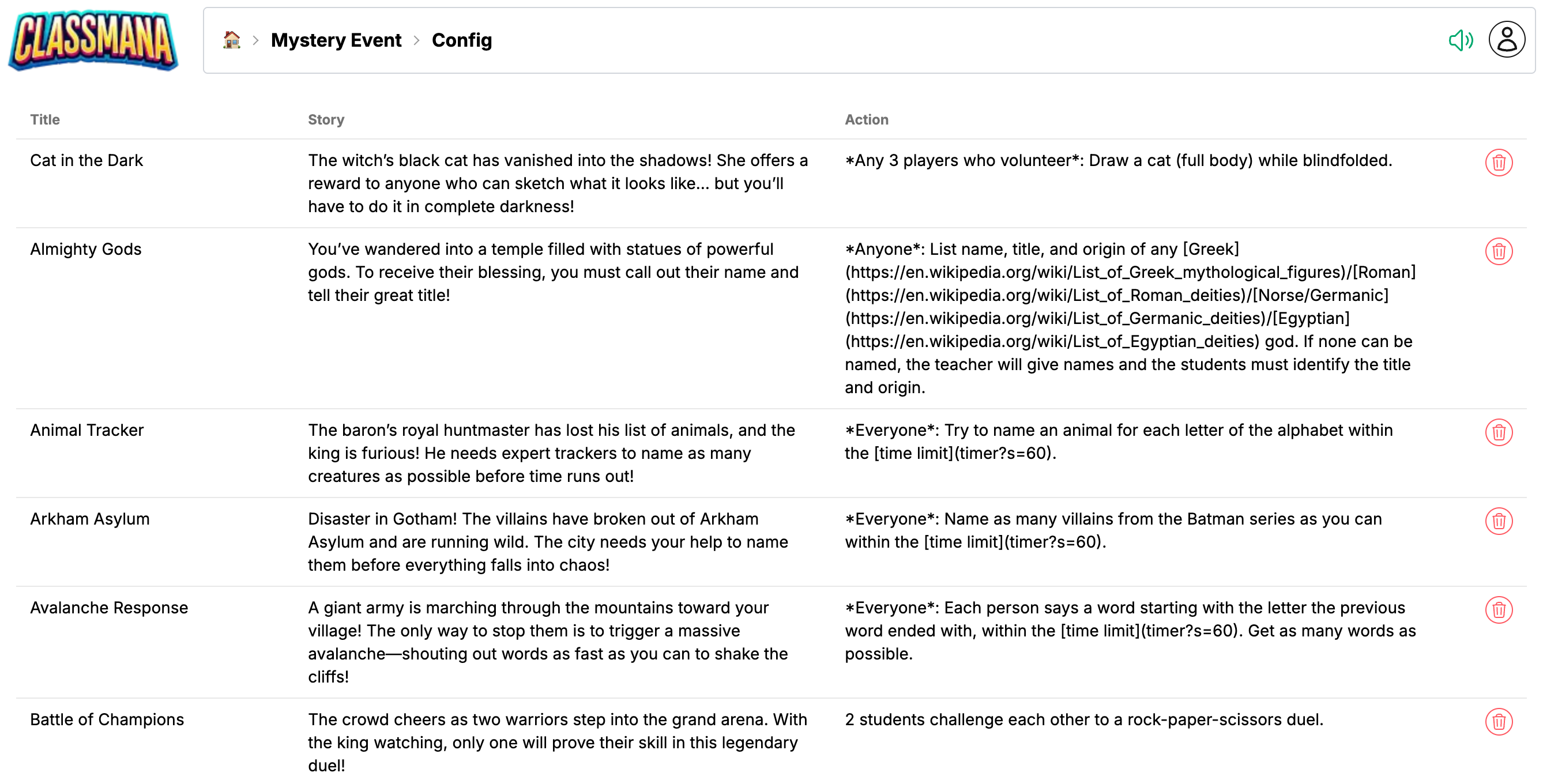
The configuration page shows a single table with all your events. ClassMana events (pre-made) appear at the top, followed by your custom events below.
ClassMana Events
Pre-made ClassMana events in your language are shown in the table. To add more:
- Click the Add a shared event button below the table
- Browse the available events in the dialog
- Click the + button to add an event to your list
To remove a ClassMana event, click the delete button on its row.
Custom Events
Create your own custom events directly in the table.
Creating a Custom Event
- Fill in the empty row at the bottom of the table:
- Title — A short name for the event
- Story — The narrative or setup for the activity
- Action — What students should do
- Click Save to create the event
Editing or Deleting Events
- Click on any field to edit an existing custom event
- Use the Edit button to modify an event
- Use the Delete button to remove an event
Syncing Events Between Classes
When you have multiple classes, you can sync Mystery Events so they share the same configuration. This saves time — configure once, use everywhere.
How Syncing Works
At the top of the config page, you'll see the "Use the Mystery Event items from another class" toggle (only shown when you have more than one class).
- Toggle on: This class uses the same events as the selected source class. Any changes made in the source class automatically apply here too.
- Toggle off: This class manages its own events independently. When you turn syncing off, the events from the source are copied over so you don't lose anything.
Use the dropdown to choose which class to sync from. The options include your other classes and Instant Teacher Tools (events configured without a class).
Note
New classes sync from Instant Teacher Tools by default. Turn off the toggle if you want a class to have its own independent event list.
Owner Only
Only the class owner can change the Mystery Event configuration. Co-teachers can view the events but cannot modify them.
Text Formatting
You can use special formatting in your story and action texts:
| What to type | Result |
|---|---|
Normal text | Normal text |
*Emphasis text* | Emphasized text (styled differently) |
[Link](https://example.com) | Clickable link to external site |
[Start Timer](timer?s=60) | Link to ClassMana timer (60 seconds) |
`Secret text` | Hidden text revealed on click |
Timer Links
You can link directly to the ClassMana timer with a specific duration:
[30 second timer](timer?s=30)— Links to a 30-second timer[2 minute timer](timer?s=120)— Links to a 2-minute timer
Secret Text
Use backticks to create "secret" text that students must click to reveal. Great for answers, surprises, or building suspense!
Tips for Using Mystery Events
- Start of class - Use an event to grab attention and transition into learning
- Brain breaks - Insert an event between lessons to refresh focus
- Rewards - Let students earn a mystery event for good behavior
- Transitions - Use events to smoothly move between activities
- Friday fun - End the week with a special event
Next Steps
- Try the Timer for timed activities
- Explore Random Student Picker to select participants
- Learn about Stage 1: Rewards & Powers to gamify your classroom