
Rich Text Editor
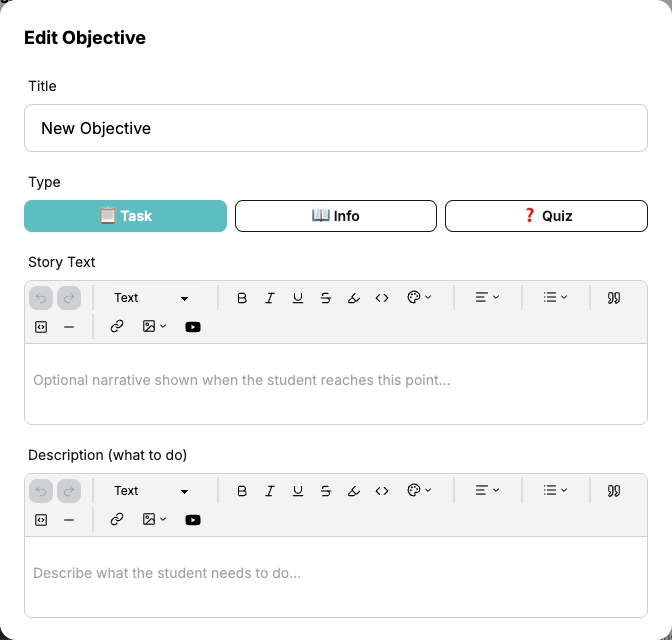
Quest objectives use a rich text editor for the Story Text and Description fields. This lets you go beyond plain text — add formatting, images, links, and even YouTube videos to make your quests more engaging.
Here's an example showing everything the rich text editor can do:
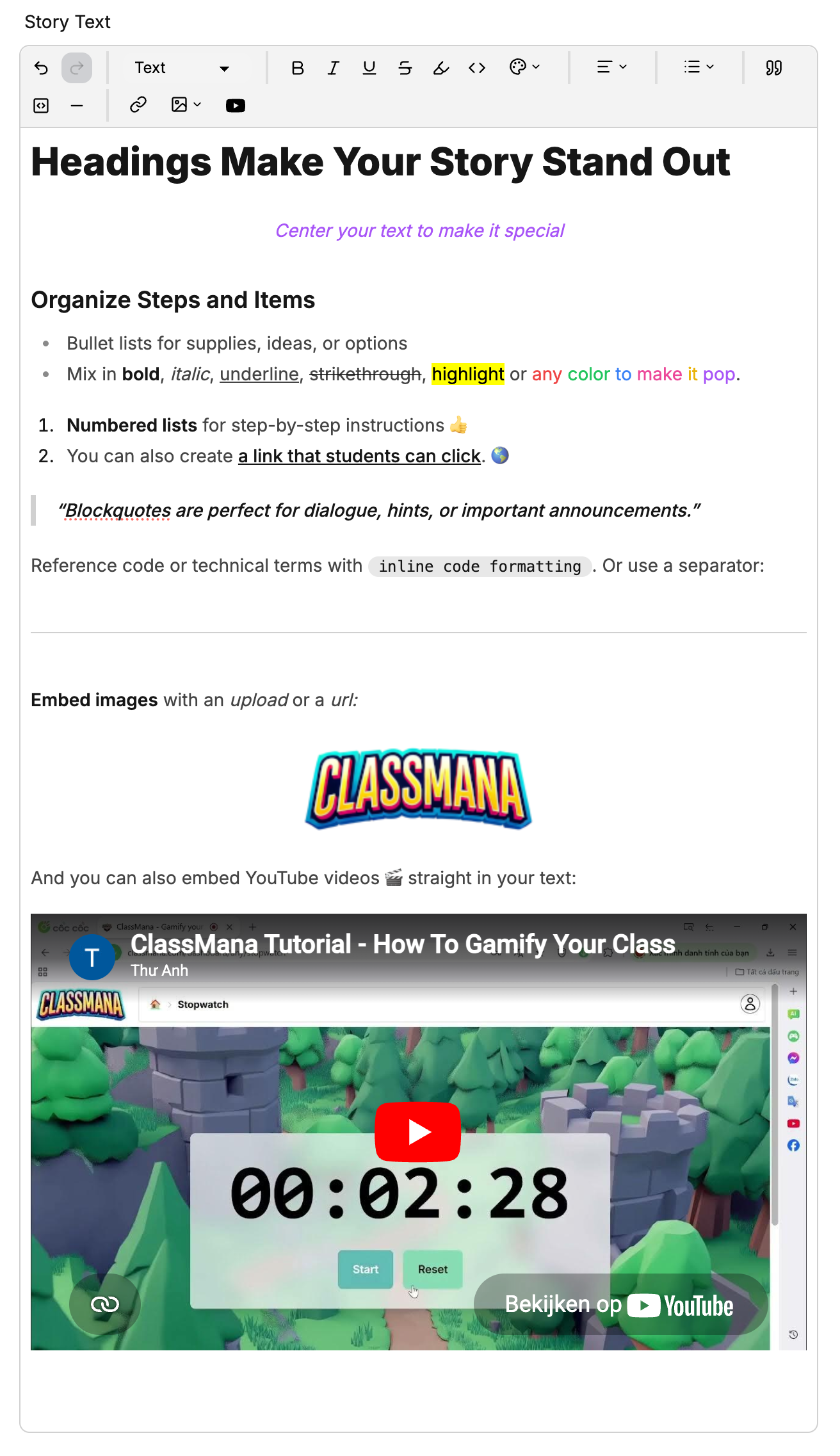
Editor Toolbar
The toolbar appears at the top of each text field. Here's what each tool does:

Undo & Redo
The Undo and Redo arrows let you step backward or forward through your recent edits.
Text Type
Use the Text dropdown to switch between:
- Text — Normal paragraph text
- Heading 1 — Large heading
- Heading 2 — Medium heading
- Heading 3 — Small heading
Use headings to organize longer descriptions into clear sections.
Text Formatting
Apply formatting to selected text:
- Bold — Make text stand out
- Italic — Emphasize text
- Underline — Add an underline
- Strikethrough — Cross out text
- Highlight — Add a colored background behind text
- Inline code — Display text in a monospaced font, useful for code snippets or technical terms
Text Color
Click the color palette icon to change the text color. Choose from:
- Red, Orange, Yellow, Green, Blue, Purple, Pink
- Default to reset back to the standard text color
Text Alignment
Click the alignment dropdown to align text:
- Left — Default alignment
- Center — Center text horizontally
- Right — Align text to the right
Lists
Click the list dropdown to create:
- Bullet list — Unordered list with dots
- Numbered list — Ordered list with numbers
Block Elements
- Quote — Add a blockquote for emphasis or callouts
- Code block — Insert a multi-line code block
- Horizontal rule — Add a dividing line between sections
Links
Click the link icon to add a hyperlink:
- Select the text you want to turn into a link
- Click the link button in the toolbar
- Enter the URL in the popover that appears
- Press Enter or click the apply button
To edit an existing link, click on it — the link popover will appear with the current URL. To remove a link, click the unlink button or use the delete icon in the popover.
External Resources
Use links to point students to external resources like articles, videos, documents, or websites relevant to the objective.
Images
Click the image dropdown to insert an image:
- Upload — Select an image file from your computer to upload
- From URL — Paste a direct URL to an image hosted online
Uploaded images are stored securely and don't count against any file limits.
YouTube Videos
Click the YouTube button to embed a video:
- Click the YouTube icon in the toolbar
- Paste the YouTube video URL (e.g.,
https://youtube.com/watch?v=...) - Press Enter or click Insert
The video will appear embedded in the text field. Students can watch it directly within the objective without leaving ClassMana.
Video Objectives
Combine a YouTube video with an Info objective to create a "watch this video" step in your quest. The video plays right inside the objective, keeping students focused.
Tips for Effective Content
- Keep Story Text short and atmospheric — A few sentences to set the scene is enough. Save detailed instructions for the Description field.
- Use headings in longer descriptions — If a task has multiple steps, use Heading 2 or Heading 3 to break them up.
- Add images for visual instructions — Screenshots, diagrams, or reference images help students understand what's expected.
- Embed tutorial videos — If the task requires a specific technique, embed a YouTube video showing how it's done.
- Use bullet lists for checklists — Break complex tasks into a clear list of sub-tasks.
- Highlight key terms — Use bold or highlight to draw attention to important words or requirements.