
Task Objectives
Tasks are the most common objective type in quests. Use them for assignments, readings, activities, or anything students need to do.
Creating a Task Objective
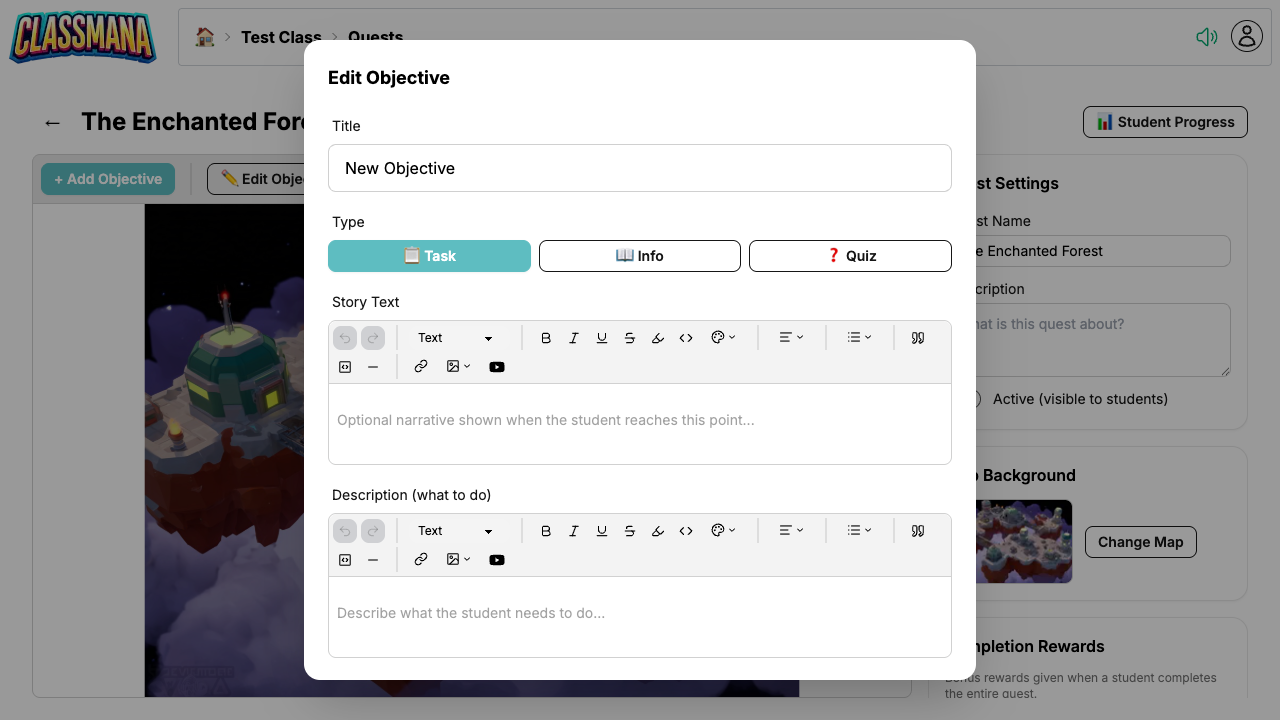
- Open the quest map editor
- Click + Add Objective
- Set the type to Task
- Configure the objective settings (see below)
Objective Settings
- Title — What students see on the map
- Story Text — Narrative text shown when the student reaches this objective, to set the scene or advance the story
- Description — Detailed instructions for what students need to do
- Rewards — Experience, gold, mana, or health awarded on completion
Auto-Complete Options
Tasks have an auto-complete setting that controls how students mark them as done:
Auto-Complete ON
Students click "Mark as Complete" and the objective is done immediately. Good for self-directed activities like:
- Reading an article
- Watching a video
- Completing an in-class activity
Auto-Complete OFF
Students click "Submit for Approval" and you review their work before marking it complete. Good for:
- Written assignments that need verification
- Projects that require teacher review
- Activities where you want to check quality
Choosing Auto-Complete
Use auto-complete for low-stakes activities where trust is sufficient. Turn it off for graded assignments or work you want to verify before awarding rewards.
Student Experience
Completing a Task (Auto-Complete)
- Student clicks the objective on the map
- Reads the story text and description
- Clicks "Mark as Complete"
- Rewards are applied immediately and the next objectives unlock
Completing a Task (Needs Approval)
- Student clicks the objective on the map
- Reads the story text and description
- Clicks "Submit for Approval"
- The objective shows as Pending (orange) on the map
- Once the teacher approves, rewards are applied and the next objectives unlock
Approving Submissions
When students submit tasks for approval:
- You'll see a pending approval counter on the quest list page
- Open the progress page to see all pending submissions
- Approve or reject each submission individually
- Use bulk approve to approve all pending submissions at once
Pending Approvals
Check the quest list regularly for pending approvals. The counter badge makes it easy to see at a glance if students are waiting for your review.